


FAQ
“Unlock” button is not working
The Unlock button doesn’t unlock the content?
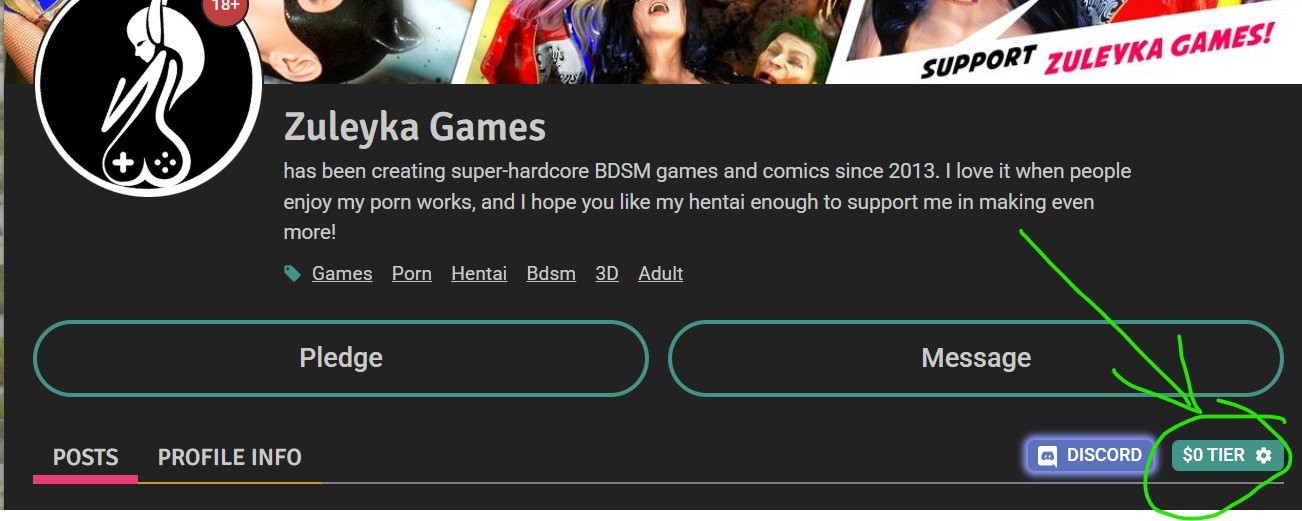
- Check if you have a subscription on SubscribeStar of the same category as the post, or a higher one to unlock the content in Club des mécènes.
As example: The SubscribeStar Platinum Tier is unlocking everything in Platinum Club and lower categories, but VIP Club is still locked.
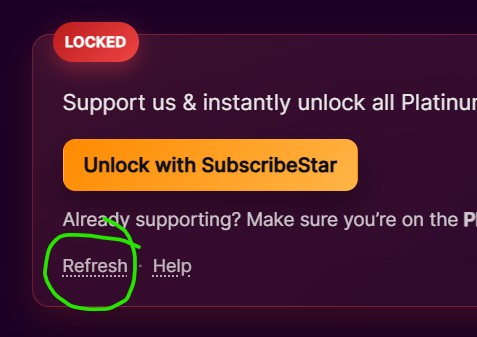
2. Try to click “Refresh” button to refresh the page
How to use “Refresh” button
The “Refresh” button
Under the Unlock with SubscribeStar button you’ll see two small links: Refresh and Help.
Refresh reloads the post and shows it exactly as it is right now for your SubscribeStar account: unlocked if you have the required tier, or the reason why it’s still locked.
When to use it
Click Refresh if the post looks wrong or out of date, for example:
- You’ve already unlocked this post (in another tab, window or device), but this tab still says Locked.
- You pressed the browser’s Back button and got an old version of the page.
- You just changed your tier on SubscribeStar and the page hasn’t noticed yet.
- The page shows an error message and you want to try again.
How to use it
- Scroll to the locked box at the bottom of the post.
- Click Refresh. The page reloads and jumps back to the same box.
- Read the result:
- Unlocked — you’re done, the full post is above.
- Still locked, with a message — the message tells you what’s missing:
- “Your subscription is $X. This post requires the … tier ($Y) or higher” — your current tier is too low. Click Upgrade on SubscribeStar, change your tier, come back and click Unlock with SubscribeStar again.
- “Your SubscribeStar subscription is not active” — subscribe (or renew) on SubscribeStar, then click Unlock with SubscribeStar.
- “We couldn’t verify your subscription” — a temporary problem talking to SubscribeStar. Wait a minute and click Unlock with SubscribeStar again.
- Still locked, no message — you haven’t signed in on this browser yet. Click Unlock with SubscribeStar.
Good to know
You never need to clear your browser cache manually — Refresh takes care of that for this page.
Refresh does not sign you in. It only redraws the page. If you’ve never clicked Unlock with SubscribeStar in this browser, do that first.
After you upgrade your tier, click Unlock with SubscribeStar once more — Refresh alone shows the last known result.
If you switch to another browser or device, or use private/incognito mode, click Unlock with SubscribeStar again there.
3. Try clearing your browser cache (Ctrl + Shift + Del in Chrome). Check out the video tutorial below!
4. You can also try clicking Unlock and logging into SubscribeStar in a different browser. We recommend using Brave, Opera or Firefox.